Stop recreating designs you already made in Canva
🔗 As Mentioned: Easy Peasy Canva
You're in the middle of a design in Canva and you suddenly remember: I already made something perfect for this — but it's in a completely different project.
So now what? Do you open a new tab, track down the file, try to remember which folder it's in, and copy-paste your way back? Or do you just recreate it from scratch and waste 20 minutes?
Here's a faster way — and you never have to leave the design you're working on.
The Quick Way to Access Designs from Another Canva Project
Step 1: Add a blank page to your current design. Click the Add Page icon. This gives you a blank canvas to work with — right inside the file you already have open.
Step 2: Go to Projects and find your folder. With your new blank page active, go into Projects in the left panel. Navigate to the folder where your other design lives.
Step 3: Add the design to your new page. Click to add that design. Canva will drop it right in — fully editable. You can move elements around, swap text, change colors, resize things — everything is live.
Step 4: Resize the page if you need a different size. Click the Add Page Type button at the bottom. From there, hit More to create a custom size, choose from Canva's preset sizes, or pick from other format options. You can have completely different page sizes living inside the same project.
That's it. No new tabs. No hunting through your account. No starting over.
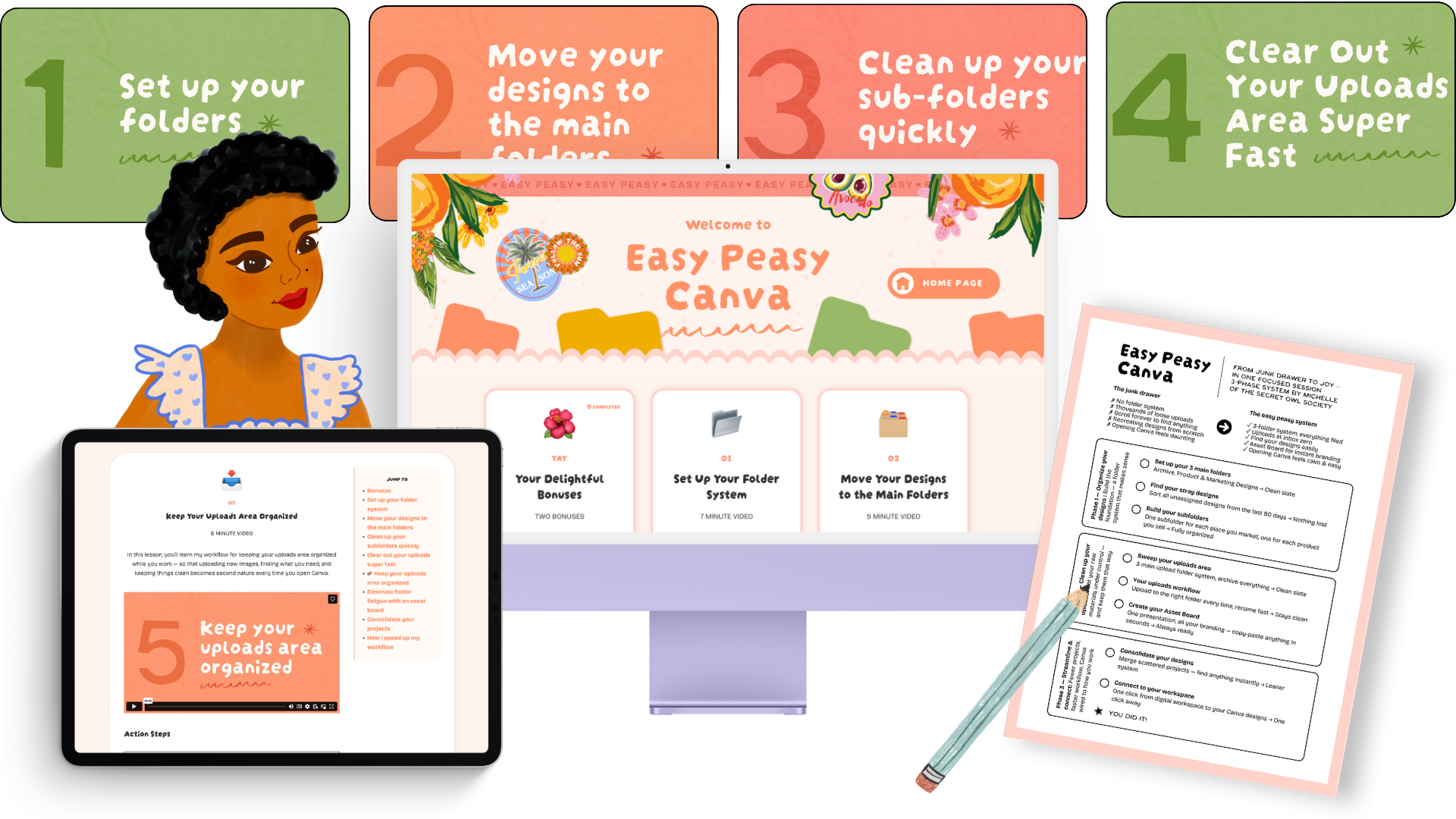
Organize your entire Canva account in one sitting
WHAT YOU WILL LEARN
How to set up a folder system that makes every design instantly findable
How to use an Asset Board to eliminate folder fatigue
How to consolidate your projects so you're not hunting across dozens of files
How to clear out your Uploads area super fast